The keyboard and mouse are two of the most important tools for using a computer. They help you communicate with the computer. The keyboard lets you type, and the mouse helps you point, click, and select items on the screen.
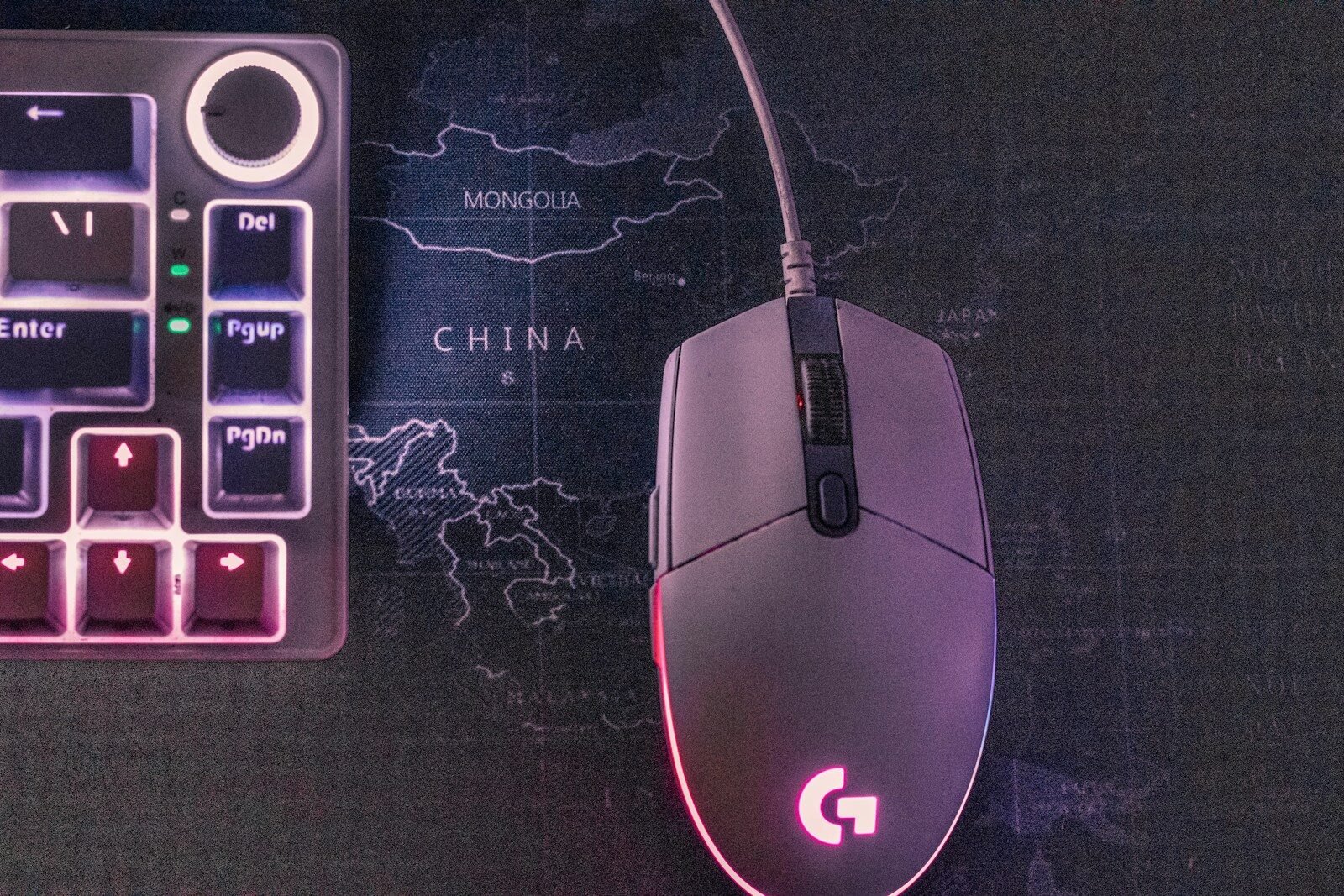
A keyboard contains letters, numbers, symbols, and special keys. The letter keys are used for typing words. The number keys are used for typing numbers. The spacebar creates spaces between words. The Enter key starts a new line or confirms a command. The Backspace key deletes characters to the left of the cursor.
The Shift key is used to type capital letters and symbols found at the top of some keys. For example, holding Shift and pressing a letter makes it uppercase. The Caps Lock key keeps letters capital until it is turned off. The Tab key moves the cursor forward, often used in forms or documents.
The Ctrl, Alt, and Windows keys are special command keys. They are often used with other keys to perform shortcuts. For example, Ctrl + C copies selected text. Ctrl + V pastes copied text. Ctrl + S saves a document. Ctrl + Z can undo a mistake.
To type well, sit comfortably and place both hands on the keyboard. Try to use both hands instead of one finger. Beginners do not need to type fast at first. Accuracy is more important than speed. With practice, typing becomes easier.
The mouse controls the pointer, also called the cursor, on the screen. When you move the mouse, the pointer moves. The left button is used for most actions. A single click selects an item. A double-click opens files, folders, or programs. A right-click opens a menu with more options.
The scroll wheel in the middle of the mouse helps you move up and down on a page. This is useful when reading websites, documents, or long lists. Some mice also allow the scroll wheel to be clicked for extra functions.
Dragging is another important mouse skill. To drag, place the pointer on an item, hold down the left mouse button, move the mouse, and release the button. Dragging can move files, highlight text, or resize windows.
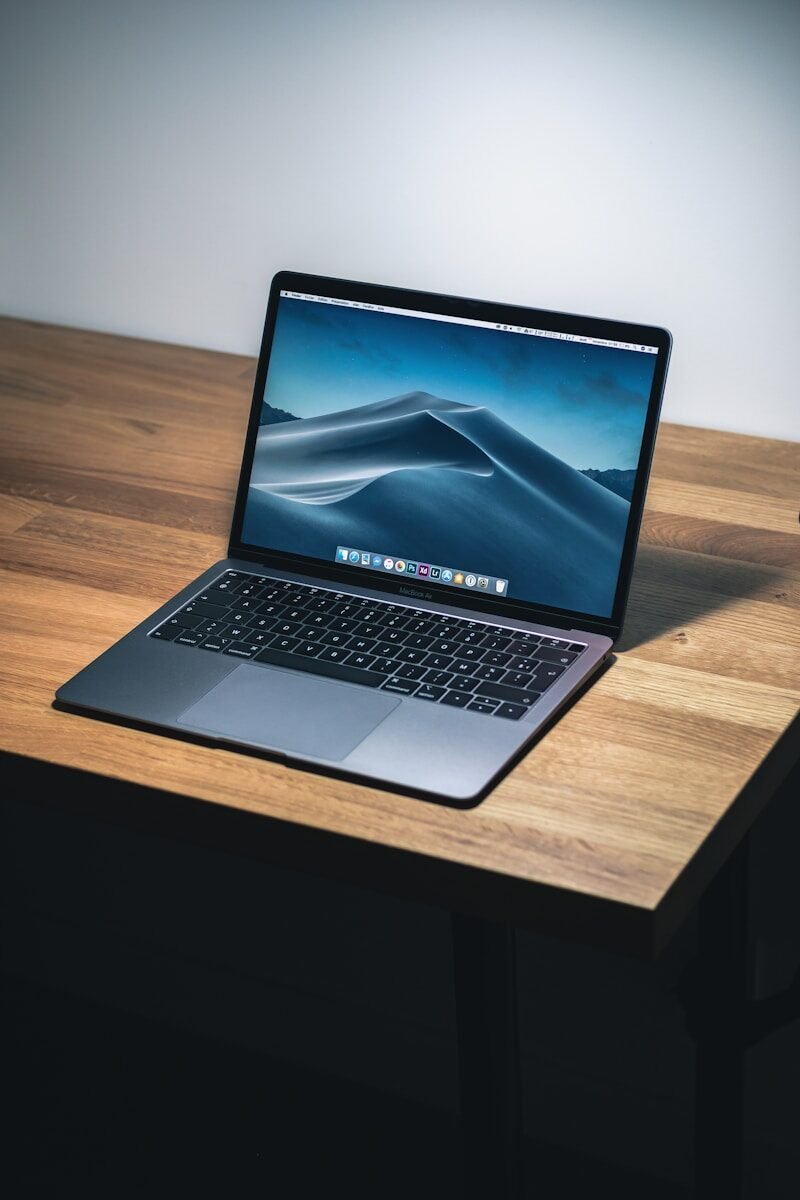
A laptop often uses a touchpad instead of a mouse. The touchpad works by moving your finger across the small flat surface. Tapping can act like clicking. Two fingers can often be used to scroll. Some people still connect a regular mouse to a laptop because it feels easier.
Good habits are important. Keep the keyboard clean. Do not eat over it. Keep drinks away from the computer. Use gentle pressure when typing and clicking. If the mouse does not work, check the cable, battery, or wireless connection.
Practicing keyboard and mouse skills can help with many computer tasks. You will need these skills to write documents, search the internet, fill out forms, send emails, create presentations, and manage files.
In conclusion, learning to use the keyboard and mouse is one of the first steps in computer education. These tools may feel difficult at first, but regular practice builds confidence. Once you understand typing, clicking, scrolling, and dragging, you can do many useful things on a computer.
Published by: All About Computer Website
Category: Computer Basics