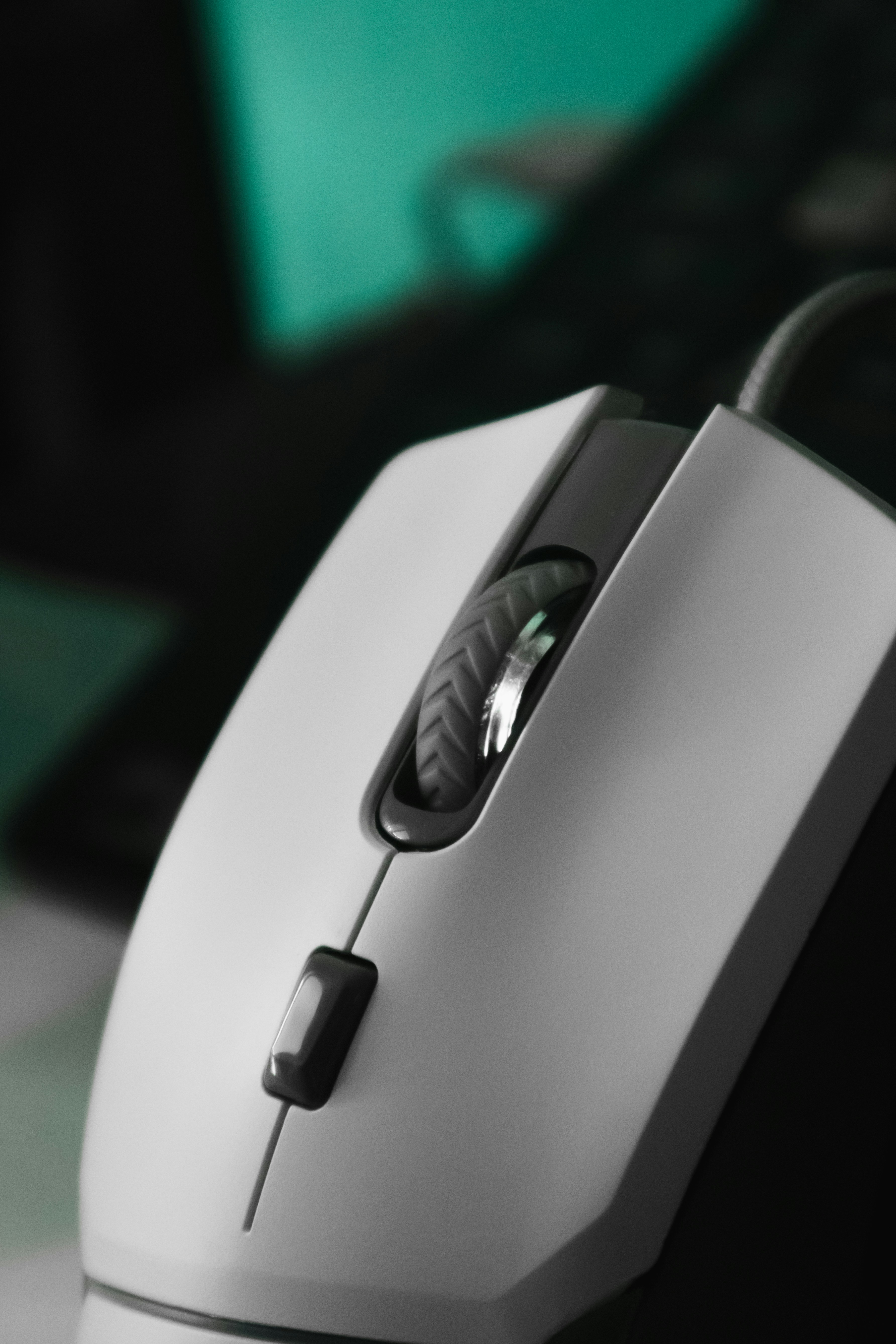
Introduction to Click Actions
Click actions are fundamental interactions that allow users to communicate with their computer systems, making navigation seamless and intuitive. In essence, a click action occurs when a user presses a mouse button, which is typically associated with executing commands, selecting items, or interacting with software applications. Understanding click actions is critical as they form the cornerstone of user-interface design and dictate how users engage with digital environments.
There are primarily three types of click actions relevant to users: the single click, the double click, and the right-click. A single click performs many basic functions, such as selecting text or opening a file, effectively serving as the most straightforward method of user interaction. A double click, on the other hand, often signifies a more complex action, typically required to open folders or execute programs. This action demands precise timing and coordination, further illustrating the importance of understanding how various clicks function.
Lastly, the right-click serves a very different purpose by providing users with contextual menus that offer additional options related to the selected item. Often, it reveals features and settings that may not be immediately visible through a standard click. Understanding these different forms of clicks is essential for enhancing user experience and optimizing interaction with technology.
As we delve deeper into this post, we will explore the myriad uses of these click actions and their implications on user interaction design, emphasizing their significance in enhancing productivity and efficiency in using computer systems.
The Single Click Explained
A single click is one of the most fundamental forms of interaction with a computer interface, serving as a primary method for selecting and engaging with items on a screen. When a user performs a single click using a mouse or a similar pointing device, they typically indicate their intention to select a specific element, such as an icon, a hyperlink, or a button. This action activates the object under the pointer, allowing the user to proceed with their chosen task.
In various scenarios, single clicks are especially significant. For instance, when navigating a web page, clicking a link can direct the user to another page or resource, thus facilitating seamless access to information. Similarly, in software applications, a single click might open a file or initiate a command. The simplicity of this action enhances user experience, as it provides an intuitive means of interacting with digital content. Moreover, the predictability of a single click, as opposed to more complex gestures like double-clicking or right-clicking, caters to a wide range of users, including those who may not be technologically adept.
The user experience is substantially improved when applications are designed with single clicks in mind. Streamlining navigation and ensuring that interactive elements are easily accessible through a single-click action aids in productivity and satisfaction. Users can quickly select items or commands without unnecessary complications, fostering a more efficient workflow. The effectiveness of a single click in conveying user intent demonstrates its crucial role in interface design, making it an indispensable component of modern computing.
The Double Click: A Deeper Look
The double click is a fundamental mouse interaction that plays a crucial role in user interface navigation. Unlike a single click, which typically selects an item or activates a command, the double click serves a distinct purpose by executing a different action, primarily opening files and applications. This interaction is commonly employed across various operating systems and software environments, making it an integral part of user experience.
When a user performs a double click, they quickly press the mouse button twice in succession, with the actions occurring within a brief time frame. The interval required between the clicks varies slightly depending on the operating system settings, which can be adjusted for user convenience. By executing this action, the user requests a program or file to open, enabling them to access content and functionalities without navigating multiple steps.
In practice, the double click is widely utilized in graphical user interfaces (GUIs). For example, in Windows-based systems, users often double click an executable file or a folder icon to launch an application or view its contents respectively. Similarly, macOS users engage the double click on files and application shortcuts for immediate access, showcasing the standardization of this interaction across platforms.
Moreover, double clicking is not limited to file access; it has practical applications in various software. In text editing programs, for instance, double clicking on a word will highlight it, facilitating text manipulation. In some design software, users can double click on layers or elements to modify properties, thus enhancing workflow efficiency.
The versatility of the double click illustrates its pivotal role in user interactions. Understanding its function helps users navigate digital environments more effectively, ultimately shaping their overall experience. As technology advances, the double click remains a vital component of mouse interaction, bridging the gap between user intention and action.
The Right-Click Functionality
The right-click functionality is a pivotal aspect of mouse interaction, significantly enhancing user experience through its ability to display context menus and provide additional options. This action, often executed by pressing the right mouse button, serves as a shortcut to various commands that may not be visible on the main user interface. By facilitating quick access to important features, right-clicking not only streamlines workflows but also allows for a more efficient navigation of software applications.
One of the most common uses of right-clicking involves accessing context-sensitive menus that vary depending on where the action is performed. For instance, right-clicking on a file in a file explorer typically brings up options such as ‘Open’, ‘Copy’, ‘Delete’, or ‘Rename’. This dynamic nature of the right-click functionality is intuitive, as it aligns with the user’s immediate tasks while minimizing their need to navigate through multiple menus. Furthermore, right-click shortcuts provide users with actions tailored to specific elements, enabling a more personalized interaction with the software.
Moreover, the right-click action can lead to advanced options like settings adjustments or configuration adjustments. In many applications, a right-click can allow users to modify properties, apply filters, or initiate secondary tasks, thereby enhancing productivity. For example, in graphic design software, right-clicking on an object might bring options for resizing, rotating, or changing its properties, which greatly aids in the creation and editing process. Overall, the right-click functionality is a powerful tool that not only simplifies interactions but also empowers users to extend their control over digital environments.
Differences Between Click Types
Understanding the basic types of mouse clicks is essential in navigating graphical user interfaces (GUIs) effectively. The three primary click actions are the single-click, double-click, and right-click, each serving a unique purpose in system interaction.
A single-click is the most common action used to select an item. For instance, when a user single-clicks a folder or an application icon, it highlights the selection, allowing further actions like opening or modifying the item. This click type is intuitive and forms the foundation of user interaction within various software environments.
In contrast, a double-click involves rapidly pressing the mouse button twice in succession. This action is primarily responsible for executing a command, such as opening files or applications. Most operating systems are programmed to recognize the double-click gesture as a prompt to perform specific tasks. Users might find themselves confused when initially using devices that rely on this function, especially if they are accustomed to a single-click interface.
Lastly, the right-click action activates context menus, providing users with additional options specific to the selected item. For example, right-clicking on a file might present options to cut, copy, or delete, which are not accessible through a single-click. This click type is essential for streamlining workflows, yet it is sometimes overlooked by users who may not be aware of its functionality.
In summary, distinguishing between these click types enhances the interaction experience within GUIs. While some users may experience initial confusion, familiarity with the unique functions of single, double, and right-click actions is vital for effective navigation and productivity in digital environments.
Click Actions Across Devices
In the realm of mouse interaction, the implementation of click actions can significantly vary based on the type of device in use. Understanding these differences is crucial for optimizing user experience across platforms. Traditional desktop mice are equipped with buttons that facilitate distinct click actions. A left-click typically selects an item or opens files, while a right-click often reveals context menus, providing additional options.
In contrast, touchpads present a different interaction paradigm. Users can execute left-click actions by tapping the surface, while right-click functionality usually involves a two-finger tap. This tactile response mirrors that of a mouse but often requires a slight adjustment in the user’s touch technique, particularly for those more familiar with traditional input devices. Furthermore, touchpads may include advanced gestures that allow users to navigate or manipulate content using swipes or pinch gestures, enhancing the overall interaction.
On the other hand, touchscreen devices utilize direct finger interaction, which simplifies the clicking process. A tap on a touchscreen serves as a left-click action, and pressing and holding can simulate a right-click, presenting a context menu. This direct manipulation can create a more intuitive experience, particularly in applications designed for mobile or tablet environments. However, one must be cautious, as the sensitivity and responsiveness of touchscreens can vary widely, impacting the perceived accuracy of click actions.
In summary, whether using a traditional desktop mouse, touchpad, or touchscreen, the nuances of click actions are essential for understanding user interaction across devices. These variations highlight the importance of designing cross-platform applications that accommodate diverse user inputs, ensuring a seamless experience in mouse interactions regardless of the device in use.
Accessibility and Click Actions
Ensuring accessibility in digital interfaces is essential for providing an inclusive experience for all users, particularly for those with disabilities. Click actions, which are fundamental to user interaction in applications and websites, must accommodate various assistive technologies. This encompasses tools such as screen readers, switch devices, and alternative input methods that help users navigate digital content effectively.
For individuals with visual impairments, screen readers interpret the content of a webpage and convey it through auditory cues. It is crucial that click actions, whether via buttons or links, are properly labeled. Clear, descriptive labels enable the screen reader to convey the purpose of the click action, allowing users to interact with the interface confidently. Additionally, ensuring a logical reading order and proper semantic HTML structure enhances the navigation experience for these users.
Persons with motor impairments may face challenges with standard click actions that require precision. For this demographic, designing interfaces that allow for larger target areas and incorporating keyboard navigation options are vital. Implementing shortcuts or alternative click actions can help facilitate ease of access, reducing the dependency on a traditional mouse or touch screen.
Furthermore, effective visual cues, such as focus indicators, assist users in recognizing which element is currently selected, making it easier to execute click actions through keyboard navigation. A commitment to inclusive design not only improves accessibility but also enhances the overall usability of applications and websites, ensuring that all users, regardless of their abilities, can engage with digital content seamlessly.
Tips for Efficient Clicking Techniques
Improving clicking efficiency is a valuable skill that can significantly enhance user experience and productivity when interacting with digital interfaces. Here are several practical tips to optimize your clicking techniques.
Firstly, familiarize yourself with the layout of your applications and websites. Understanding where essential buttons and links are located can lead to faster navigation. Utilize keyboard shortcuts whenever possible, as they often provide a quicker alternative to mouse clicking. For example, using the Tab key can help you navigate through form fields without relying solely on mouse clicks.
Additionally, practice precision clicking to minimize errors. Taking the time to hover over clickable elements before selecting can help avoid misclicks. This is particularly important in complex interfaces where several clickable options exist in close proximity. Adjusting your mouse sensitivity settings can also contribute to improved accuracy, allowing you to control clicks more effectively.
Another effective technique is the double-click and drag. Instead of repeated single clicks, learn to use double-clicks for tasks such as selecting text or files, which can save time. When dragging items, try to maintain a steady hand movement to avoid the frustration of dropped items or misaligned selections.
Moreover, consider ergonomic factors that affect your clicking efficiency. Ensuring that your workspace is comfortable and your mouse is appropriately positioned can reduce strain and enhance performance over extended periods. Hand positioning, distance from the screen, and chair height all play significant roles in efficient clicking.
Finally, practicing these techniques regularly will lead to better muscle memory and reflexes, ultimately improving your overall clicking efficiency. By implementing these strategies, users can navigate digital environments with greater ease and precision.
Conclusion and Future of Click Actions
In summary, click actions are fundamental to the way users interact with digital interfaces. Throughout this discussion, we have explored the essence of click actions, including their history, evolution, and significance in the usability of websites and applications. The primary function of a click action typically involves initiating a response or action within the software environment, thereby facilitating user engagement. This basic interaction method has undergone various transformations, adapting alongside advances in technology.
Looking towards the future, it is likely that the role of click actions will evolve even further. The increasing prevalence of touch screens, voice activation, and gesture-based controls present both opportunities and challenges for traditional clicking methods. Touch interfaces have already altered how click actions are perceived, allowing users to navigate through swipes or taps, diminishing the reliance on mouse clicks. As we embrace a more integrated user experience, it is essential to consider how these emerging technologies might redefine click actions.
Moreover, advancements in artificial intelligence and machine learning are expected to create a more intuitive interaction paradigm, where user behaviors can shape automated responses. Interaction methods may shift away from direct clicking to more fluid engagements, enabling layers of interactions that prioritize efficiency and user satisfaction. Hence, traditional click actions, while still relevant today, may be adapted to fit within a broader context of multi-modal interfaces.
Ultimately, as we venture into a future characterized by rapid technological development, it will be crucial for designers and developers to create cohesive experiences that not only leverage the utility of click actions but also embrace the innovations of tomorrow’s user interface evolution.