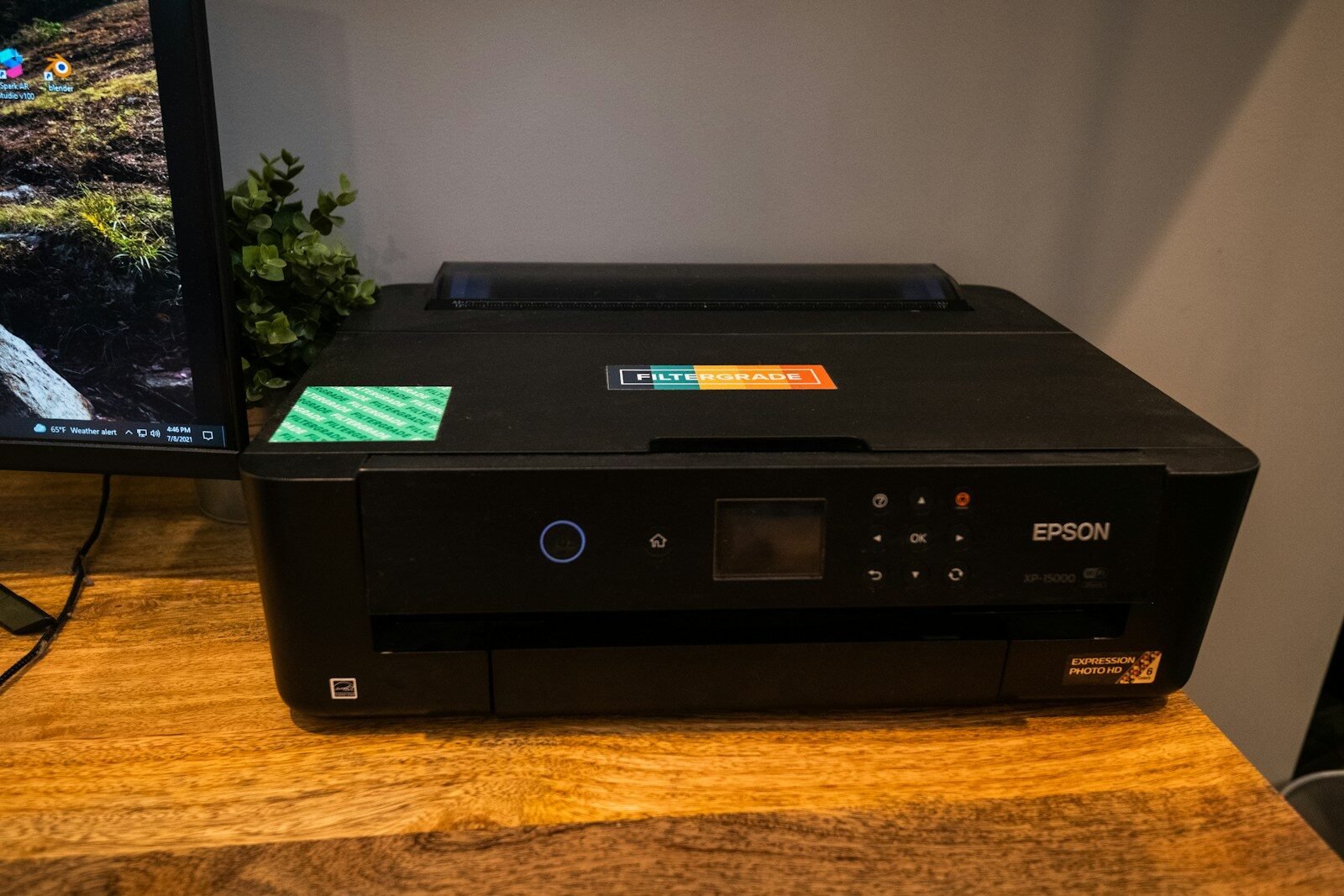
Printer problems are common in homes, schools, churches, and offices. A printer may refuse to print, print slowly, show an error, jam paper, or produce poor-quality pages. Many printer problems can be solved with basic troubleshooting.
First, check if the printer is turned on. Make sure the power cable is connected and the power button is on. Look for lights or messages on the printer screen.
Check the paper. Make sure there is paper in the tray and that it is loaded correctly. Paper that is bent, damp, or placed unevenly can cause jams.
Check the ink or toner. If the printer is out of ink or toner, it may not print. Some printers stop printing even when only one cartridge is empty. Replace cartridges when needed.
Look for paper jams. If paper is stuck, turn off the printer and gently remove the paper. Follow the printer instructions. Do not pull too hard because small pieces of paper may tear and remain inside.
Make sure the printer is connected. If it uses a USB cable, check that the cable is firmly connected to both the printer and computer. If it uses Wi-Fi, make sure the printer is connected to the correct wireless network.
Restart the printer. Turn it off, wait a few seconds, and turn it back on. Also restart the computer. This can clear temporary errors.
Check the print queue. The print queue is the list of documents waiting to print. If one document is stuck, it can block others. On Windows, open Printers & Scanners, select the printer, and open the queue. Cancel stuck jobs and try again.
Make sure the correct printer is selected. Sometimes a computer sends the document to another printer or a virtual printer such as “Print to PDF.” Choose the correct printer before printing.
Set the printer as default if you use it often. This helps the computer choose the right printer automatically.
Check if the printer is offline. In printer settings, make sure “Use Printer Offline” is not selected. If the printer is offline, the computer may not send the job.
Update or reinstall the printer driver. A driver is software that helps the computer communicate with the printer. If the driver is missing or outdated, printing may fail.
For poor print quality, run the printer cleaning tool. Many inkjet printers have a cleaning or alignment option. This can help fix faded, streaky, or uneven printing.
Use the correct paper type. Photo paper, label paper, and regular paper require different settings. Wrong settings can cause poor results.
In conclusion, printer problems often come from power, paper, ink, connection, queue, driver, or settings issues. By checking each item carefully, many printer problems can be fixed without stress.
Published by: All About Computer Website
Category: Computer Troubleshooting