
Wi-Fi problems can be frustrating. A device may not connect, the signal may be weak, or the internet may be slow. Troubleshooting Wi-Fi step by step can help you find and fix the problem.
First, check whether Wi-Fi is turned on. On laptops and phones, Wi-Fi can sometimes be disabled by accident. Also make sure Airplane Mode is off.
Next, check if you are connected to the correct network. If there are many nearby networks, your device may try to connect to the wrong one. Choose your home network and enter the correct password.
Move closer to the router. If the signal becomes stronger, distance or walls may be the problem. Wi-Fi signals weaken as they travel through walls, floors, and furniture.
Restart your device. A phone, laptop, or tablet may have a temporary connection problem. Restarting refreshes the network connection.
Restart the router. Unplug the router from power, wait about 30 seconds, then plug it back in. Wait a few minutes for it to fully start.
Restart the modem too if needed. If all devices have no internet, unplug both modem and router. Plug in the modem first and wait for it to connect. Then plug in the router.
Check other devices. If only one device has trouble, the problem is likely with that device. If all devices have trouble, the problem may be the router, modem, or internet provider.
Forget and reconnect to the Wi-Fi network. In Wi-Fi settings, choose the network and select Forget. Then reconnect by entering the password again.
Check the Wi-Fi password. Passwords are case-sensitive, meaning uppercase and lowercase letters matter. Make sure you type it correctly.
Look for interference. Microwaves, cordless phones, thick walls, and other electronics can affect Wi-Fi. Moving the router may improve signal.
Check router placement. A router should be in an open, central location when possible. Avoid placing it on the floor or inside a cabinet.
If Wi-Fi is slow, reduce the number of connected devices. Too many phones, TVs, tablets, and computers using the internet at the same time can slow things down.
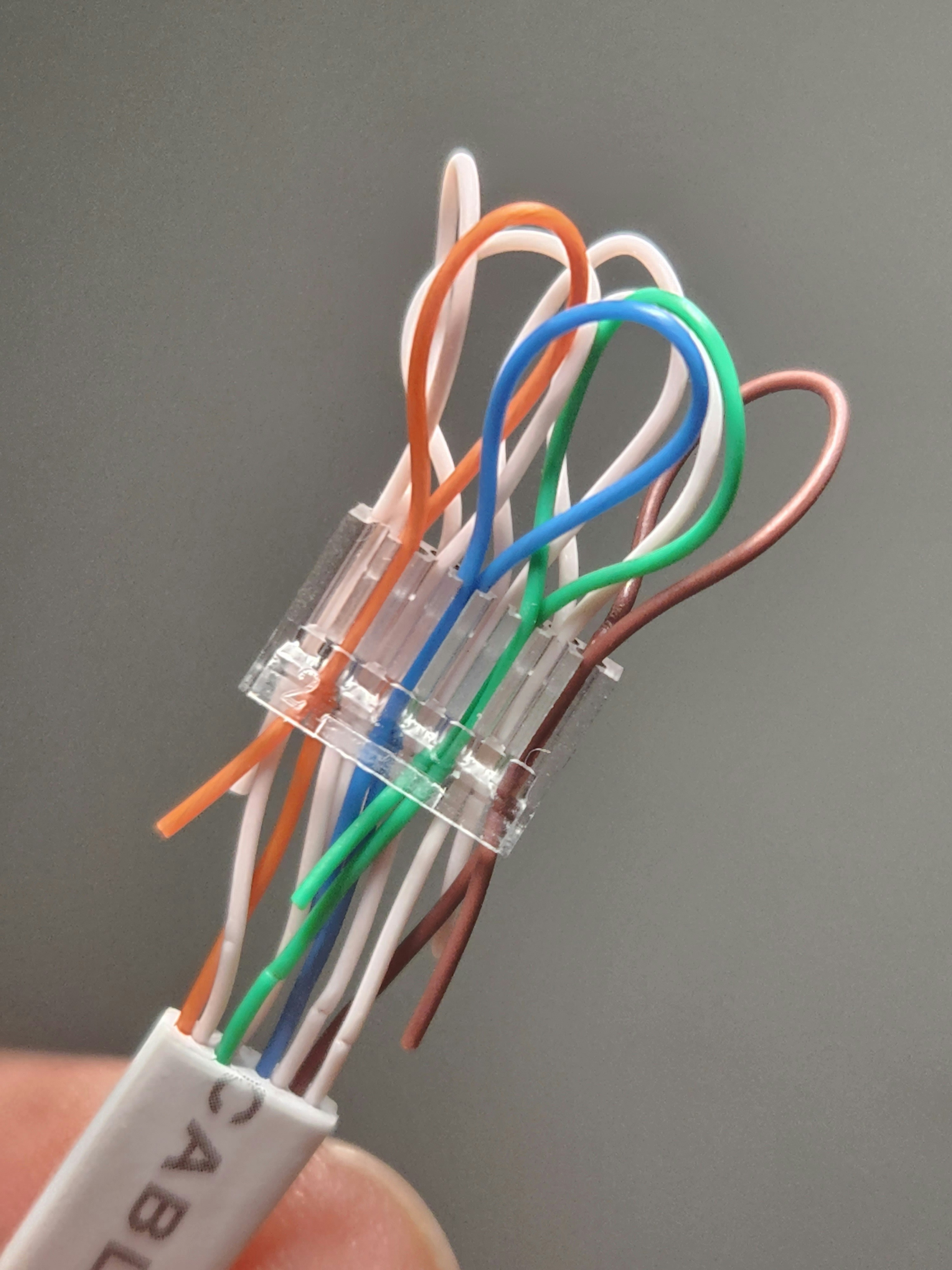
Try Ethernet. If Ethernet works but Wi-Fi does not, the issue is likely with the wireless signal or router Wi-Fi settings.
Contact your internet provider if the problem continues. There may be an outage or service issue.
In conclusion, Wi-Fi problems can often be solved by checking settings, moving closer, restarting devices, reconnecting, improving router placement, and testing other devices. Wi-Fi troubleshooting is a quiet detective job: follow the signal clues.
Published by: All About Computer Website
Category: Networking